> ## Documentation Index
> Fetch the complete documentation index at: https://docs.levelblue.com/llms.txt
> Use this file to discover all available pages before exploring further.
# Set Up the Management Interface
| | | |
| ----------------------- | ------------------ | -------------------- |
| **Applies to Product:** | **USM Appliance™** | **LevelBlue OSSIM®** |
The first time you power on the USM Appliance hardware or launch the virtual machine console after the deployment, you must configure the management interface to establish network connection. You can configure the management interface [manually](/documentation/usm-appliance/initial-setup/set-up-management-interface) or use [DHCP](/documentation/usm-appliance/initial-setup/set-up-management-interface) (Dynamic Host Configuration Protocol). But after the initial setup, DHCP configuration is no longer available.
**Important:** When using DHCP configuration, you should create an address reservation for USM Appliance prior to configuration. To ensure proper functionality, USM Appliance requires a static IP address.
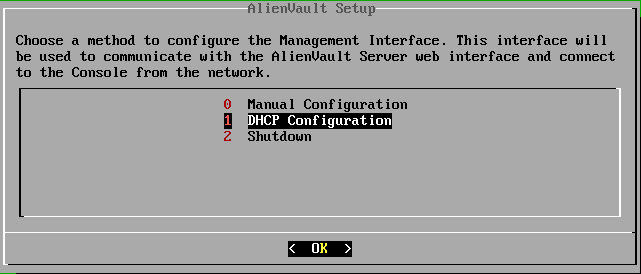 **To configure the management interface using DHCP**
1. On the LevelBlue Setup screen, select **DHCP Configuration**.
2. USM Appliance displays the network settings assigned by your DHCP server. Press **Enter** to apply.
USM Appliance configures the management interface and LevelBlue services.
**To configure the management interface manually**
1. On the LevelBlue Setup screen, select **Manual Configuration**.
2. Type the **IP address** and press Enter.
3. Type the **Netmask** for the network and press Enter.
4. Type the **Gateway** for the network and press Enter.
5. Type the IP address of the **DNS server** and press Enter.
**Note:** If you have multiple DNS servers, type each of their IP addresses separated by a comma.
6. Verify the values you entered previously and press Enter.
USM Appliance configures the management interface and LevelBlue services.
**To configure the management interface using DHCP**
1. On the LevelBlue Setup screen, select **DHCP Configuration**.
2. USM Appliance displays the network settings assigned by your DHCP server. Press **Enter** to apply.
USM Appliance configures the management interface and LevelBlue services.
**To configure the management interface manually**
1. On the LevelBlue Setup screen, select **Manual Configuration**.
2. Type the **IP address** and press Enter.
3. Type the **Netmask** for the network and press Enter.
4. Type the **Gateway** for the network and press Enter.
5. Type the IP address of the **DNS server** and press Enter.
**Note:** If you have multiple DNS servers, type each of their IP addresses separated by a comma.
6. Verify the values you entered previously and press Enter.
USM Appliance configures the management interface and LevelBlue services.