

- All assets must be visible to Tenable.
- Public assets should use the Tenable Cloud Scanner.
- Private assets require a locally installed Nessus scanner.
- Review and validate asset credentials before running authenticated scans.
By default, the LevelBlue Vulnerability Scanner is licensed for unlimited endpoints; however, there is an API limit of 8192 endpoints per scan.
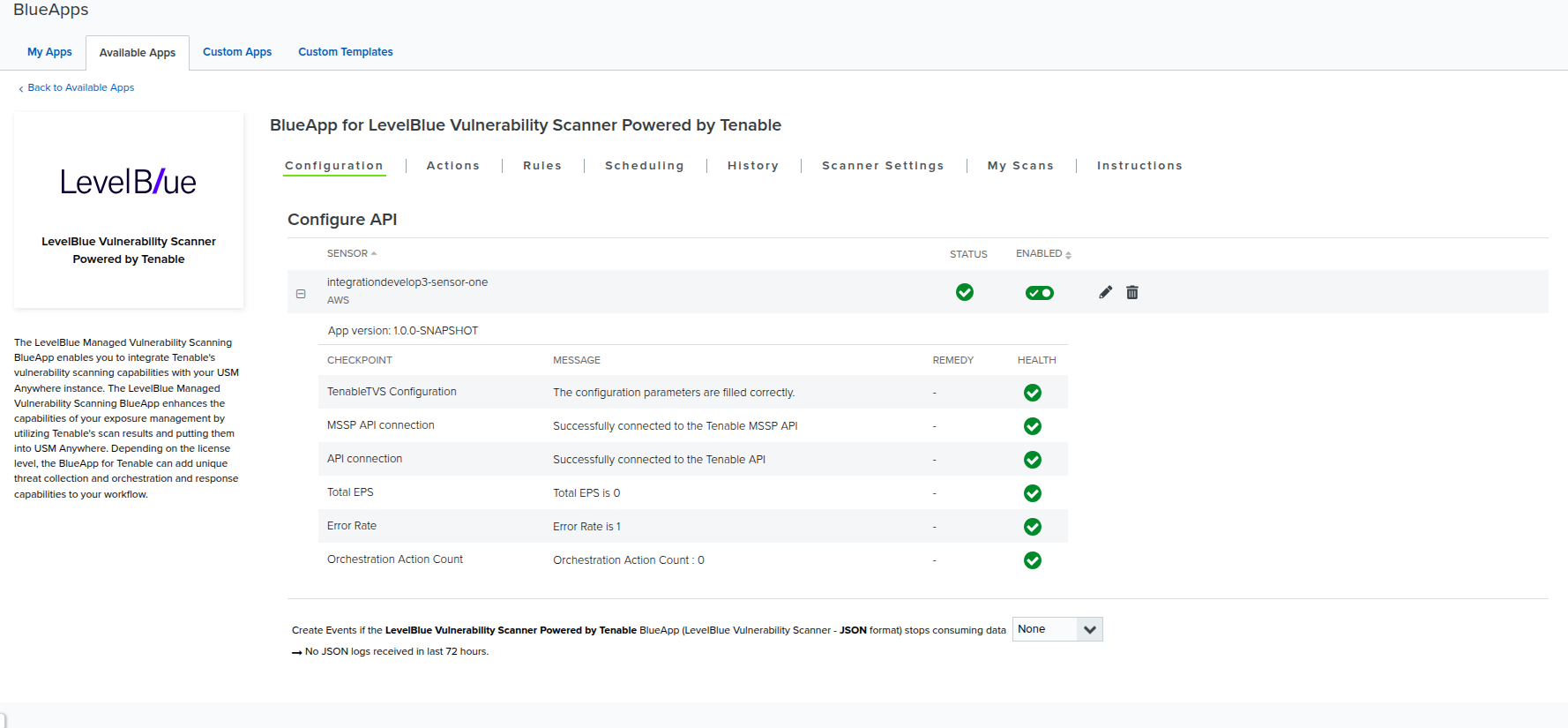
Configure and enable LevelBlue Vulnerability Scanner
- Go to Data Sources > BlueApps > Available Apps.
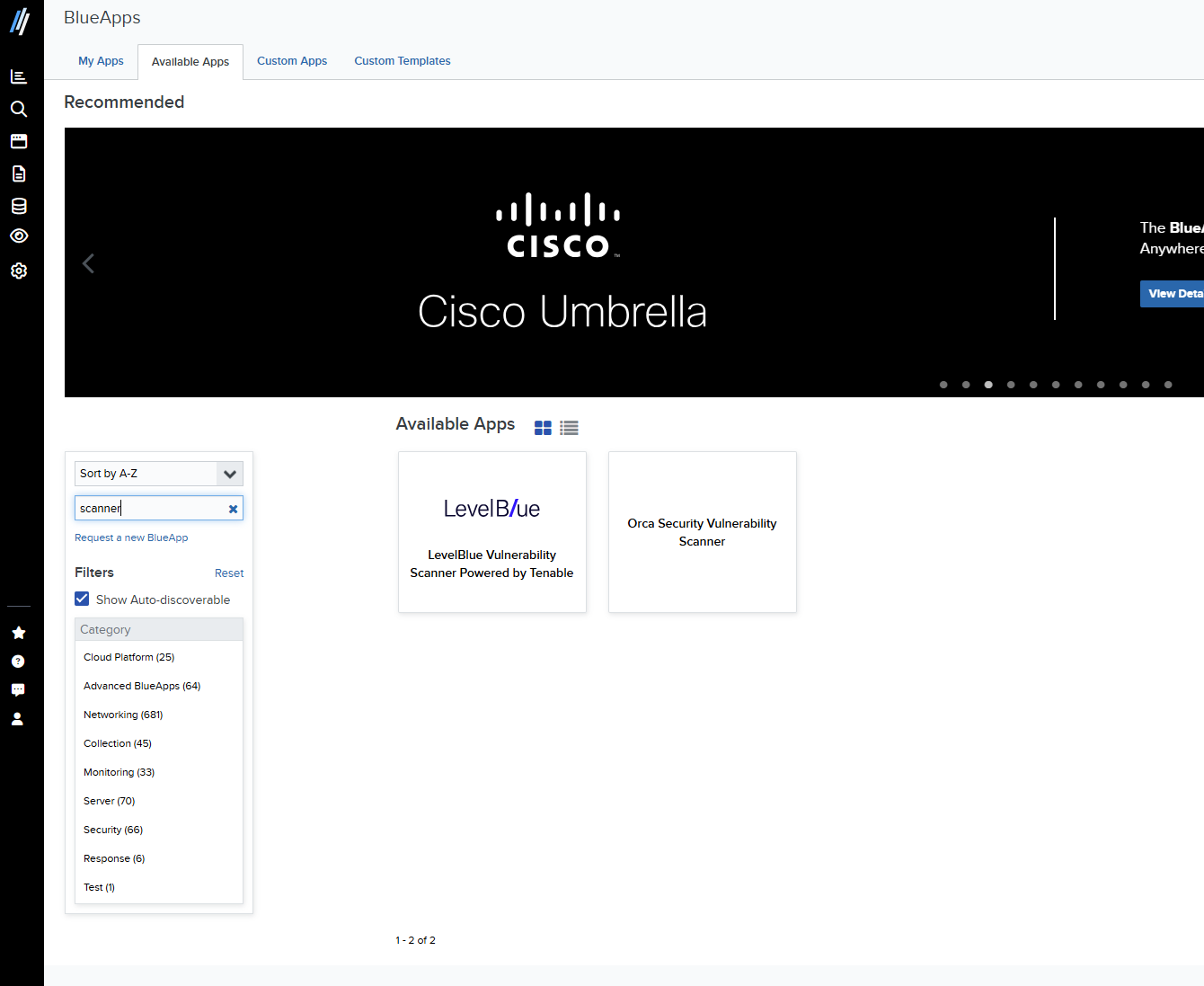
- Filter by Scanner, and then select LevelBlue Vulnerability Scanner Powered by Tenable. The Authorize Apps tab of the Blue Apps page opens.
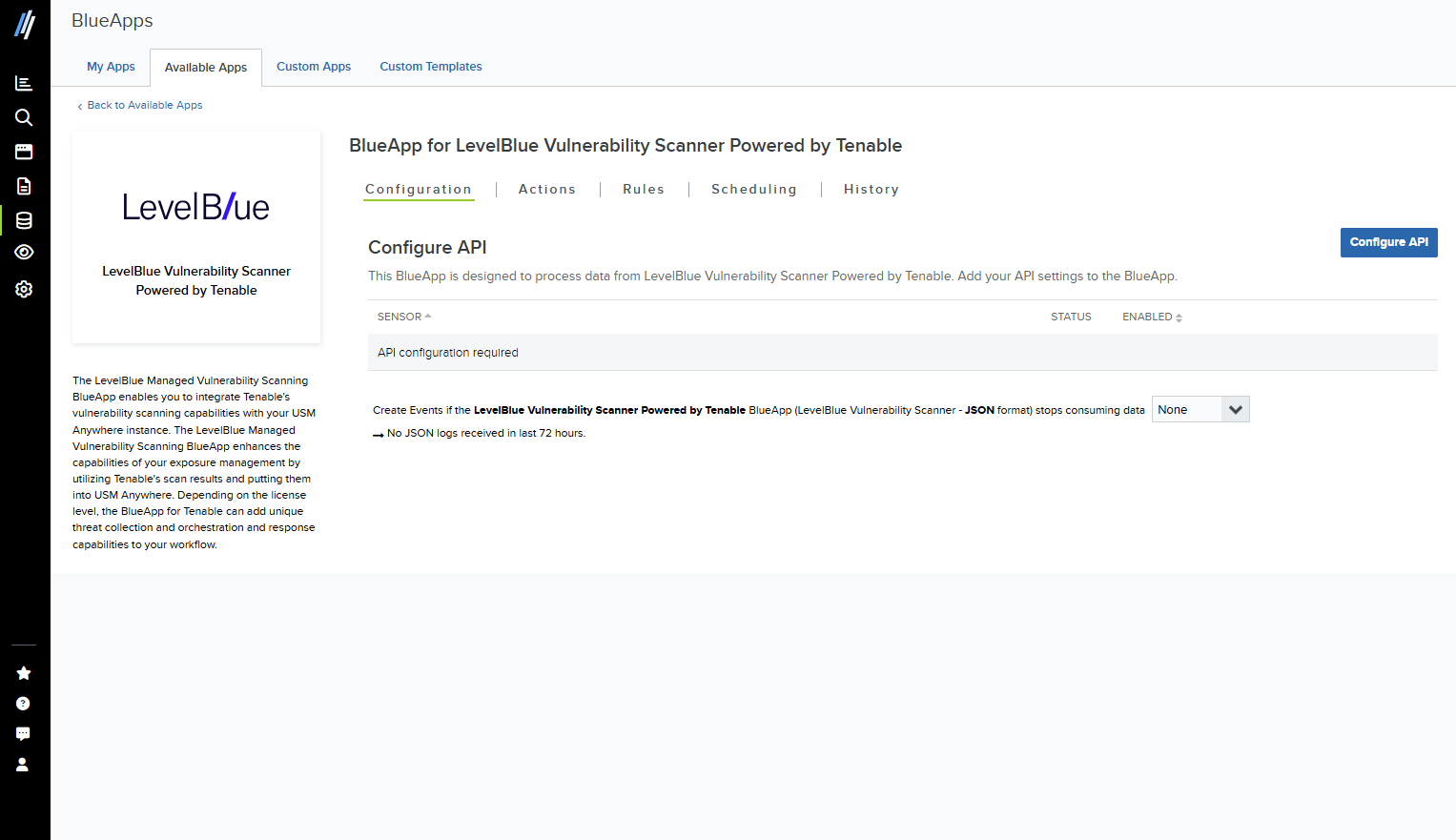
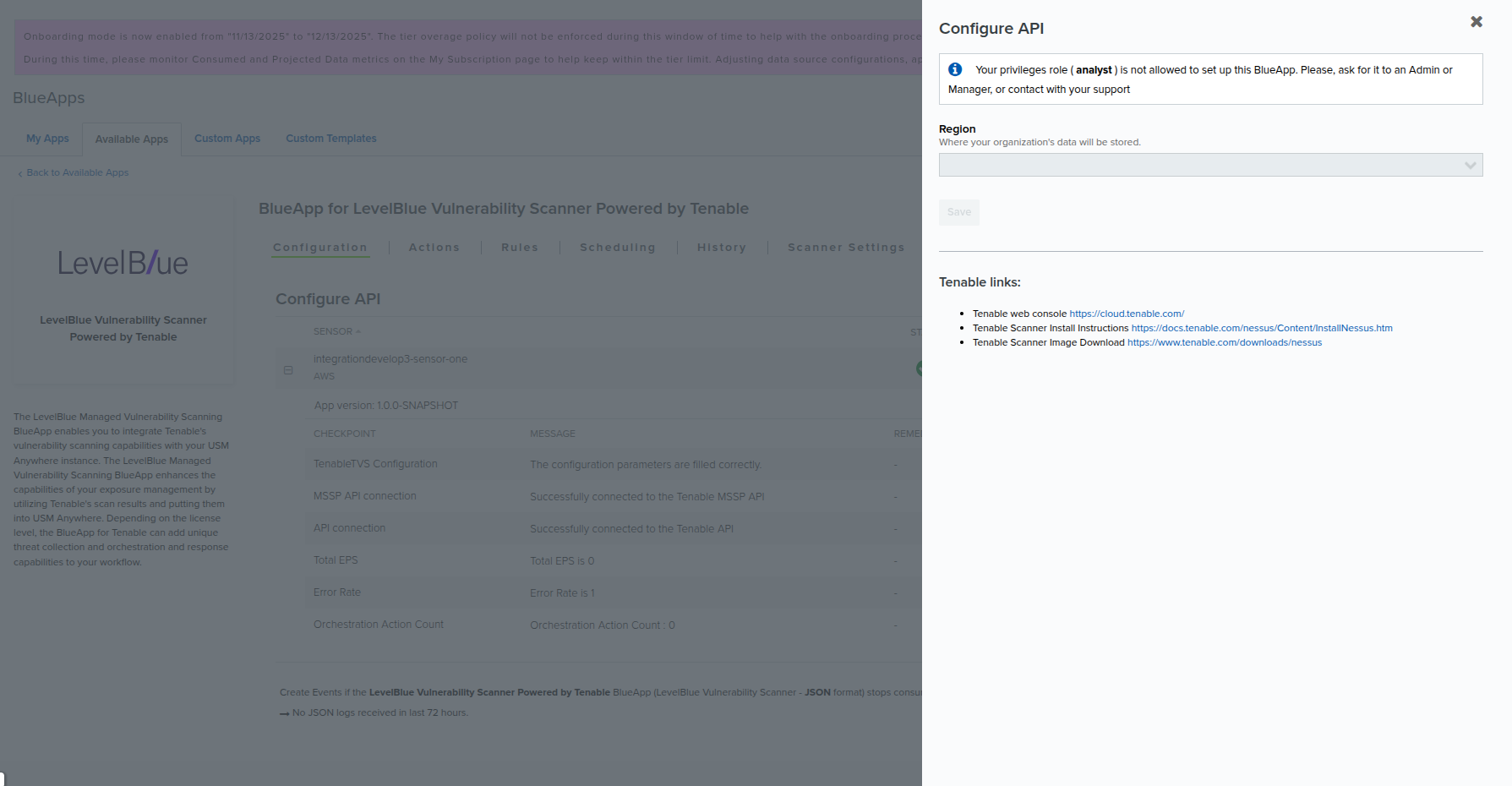
- Click Configure API.
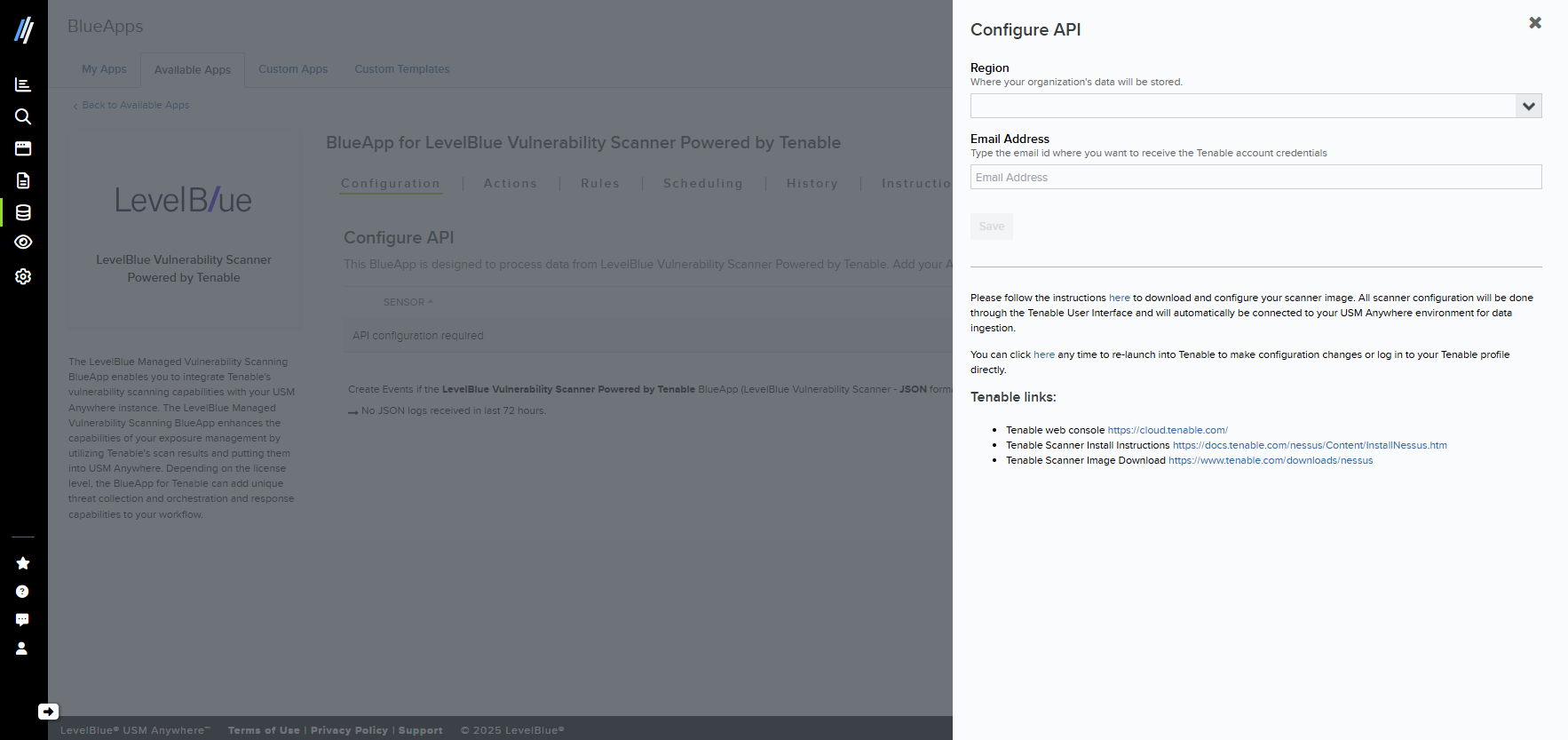
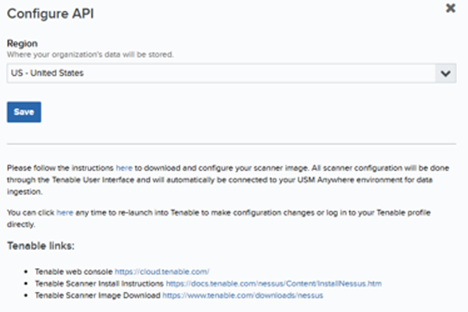
- Select the Region where the configuration data will be stored.
- Click Save.
Note: Only users with a Manager role can perform this configuration.
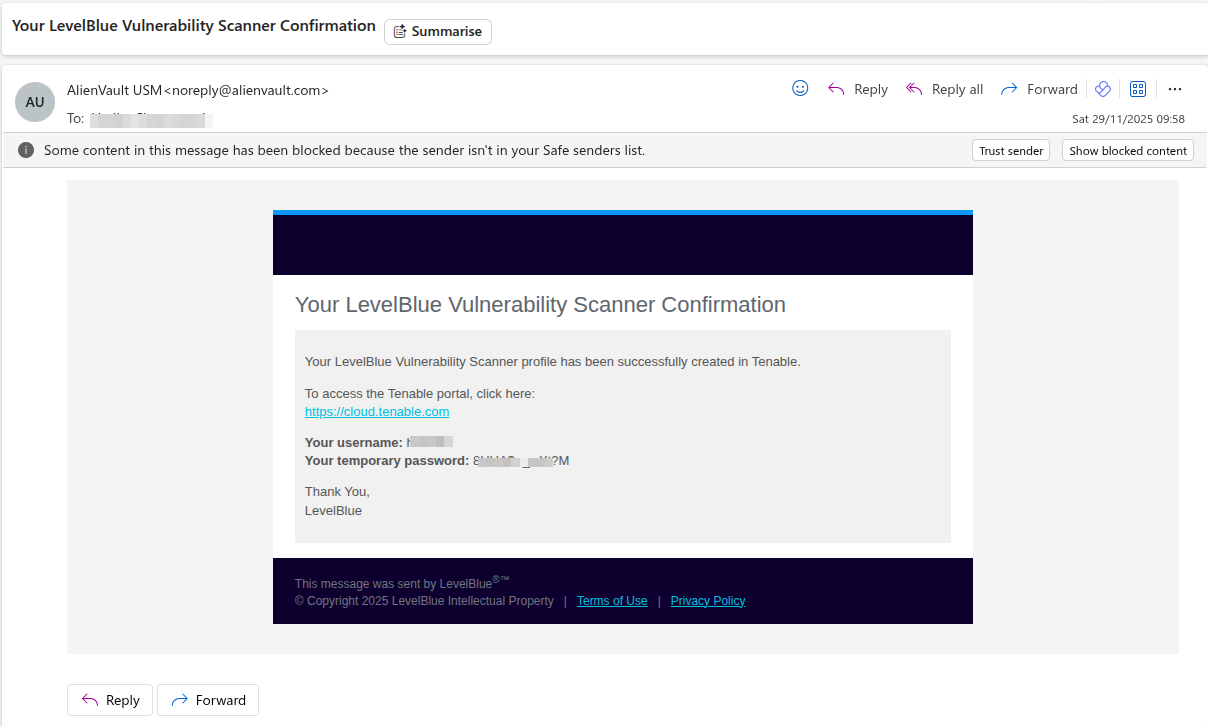
- Log into the Tenable portal using the temporary credentials provided.
- Returning to the LevelBlue Vulnerability Scanner page > Authorize Apps tab, go to the Scanner Settings tab.
- Select a default scan template.
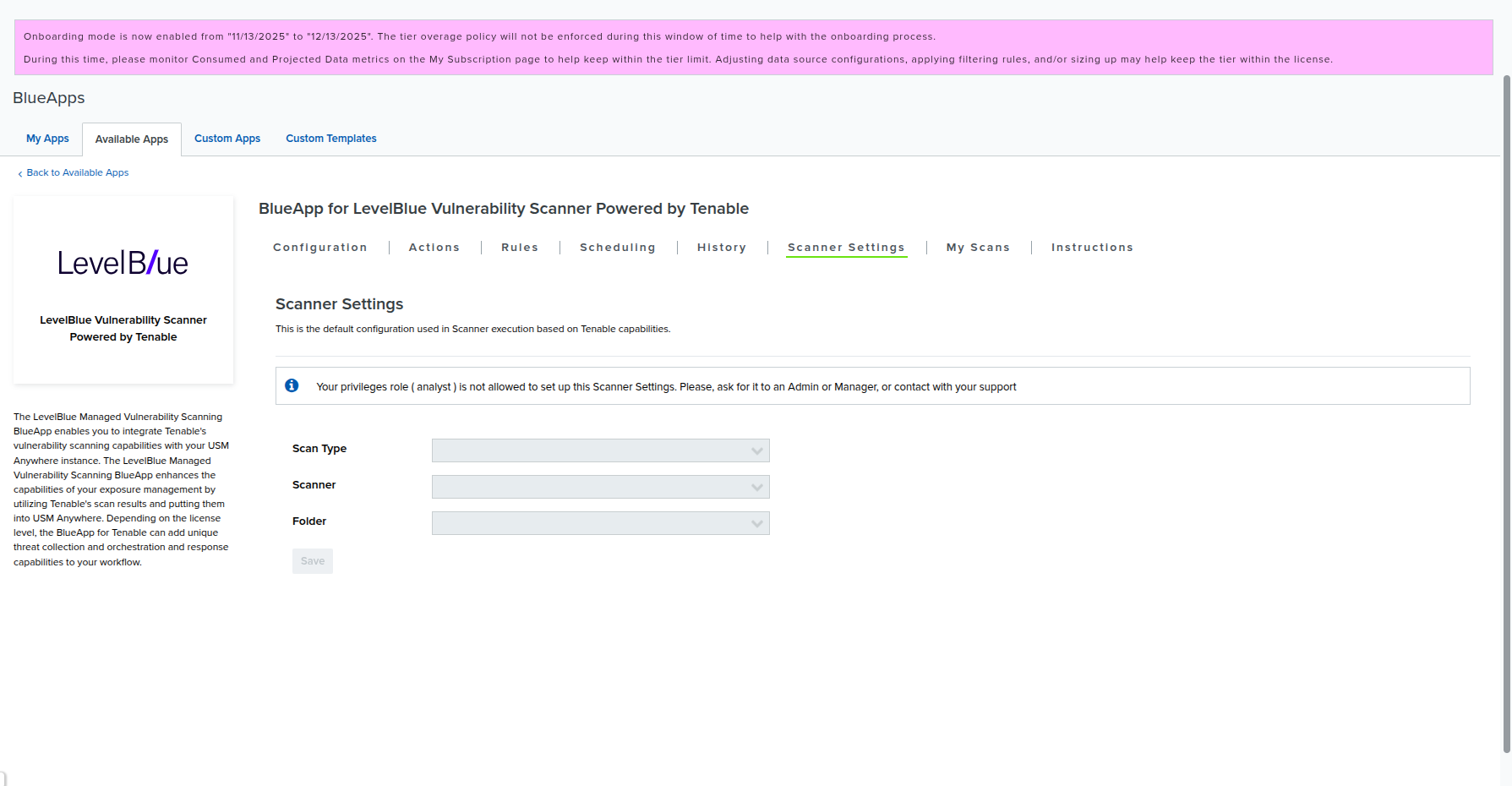
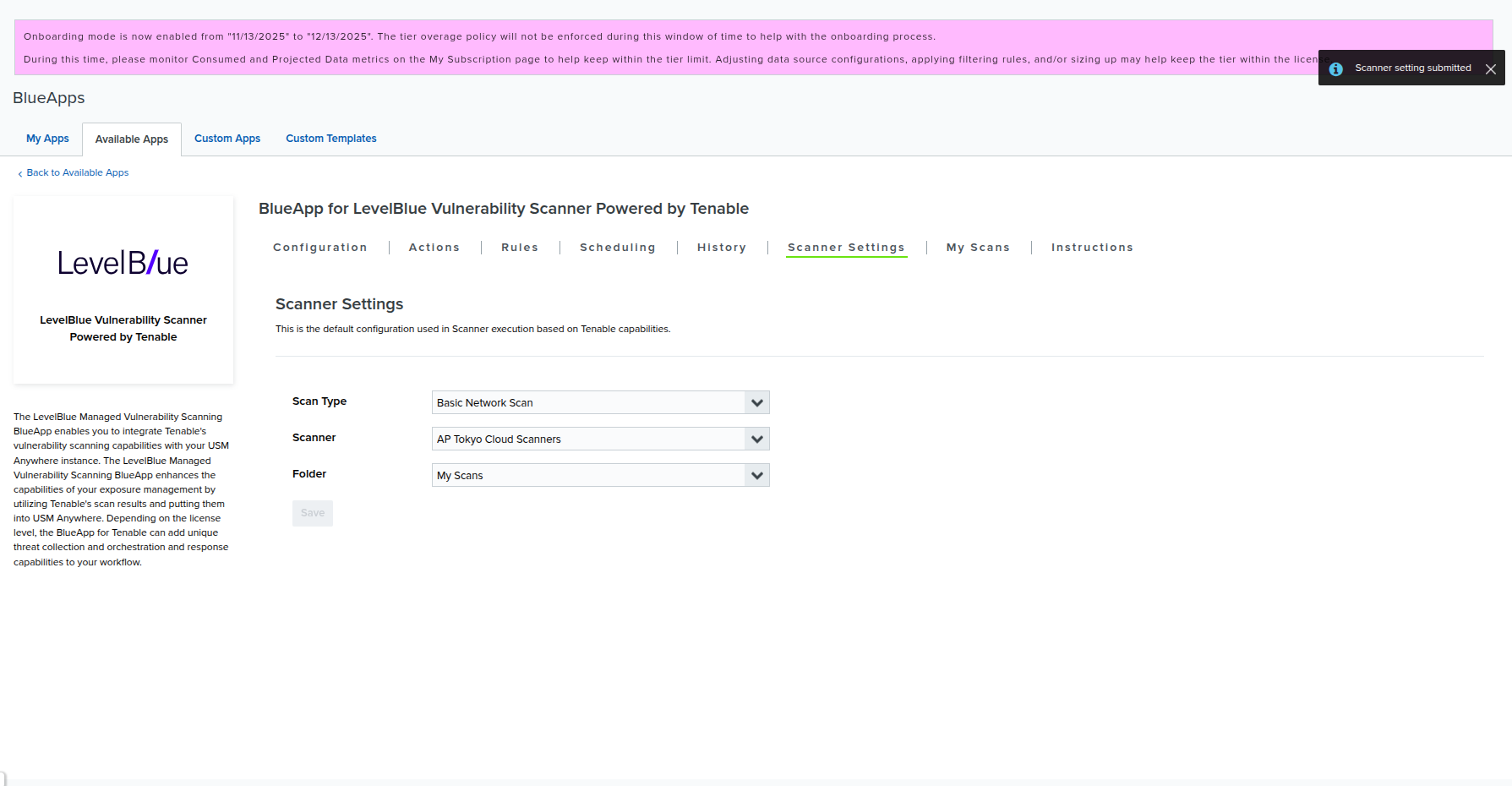
Only users with the Manager role can configure default scan templates.
- Navigate to the Assets or Asset Groups, and then run scans as usual.
- Go to the Scheduling tab to configure periodic scans.
Before running authenticated scans, verify the following:
- That assets are visible to Tenable Cloud, or they have a Nessus scanner installed
- That credentials are valid and assigned to the correct assets
Manage Asset Credentials
Existing LevelBlue USM credentials are fully supported. If credentials have been previously configured, then no reconfiguration is required. You can:- Add new credentials
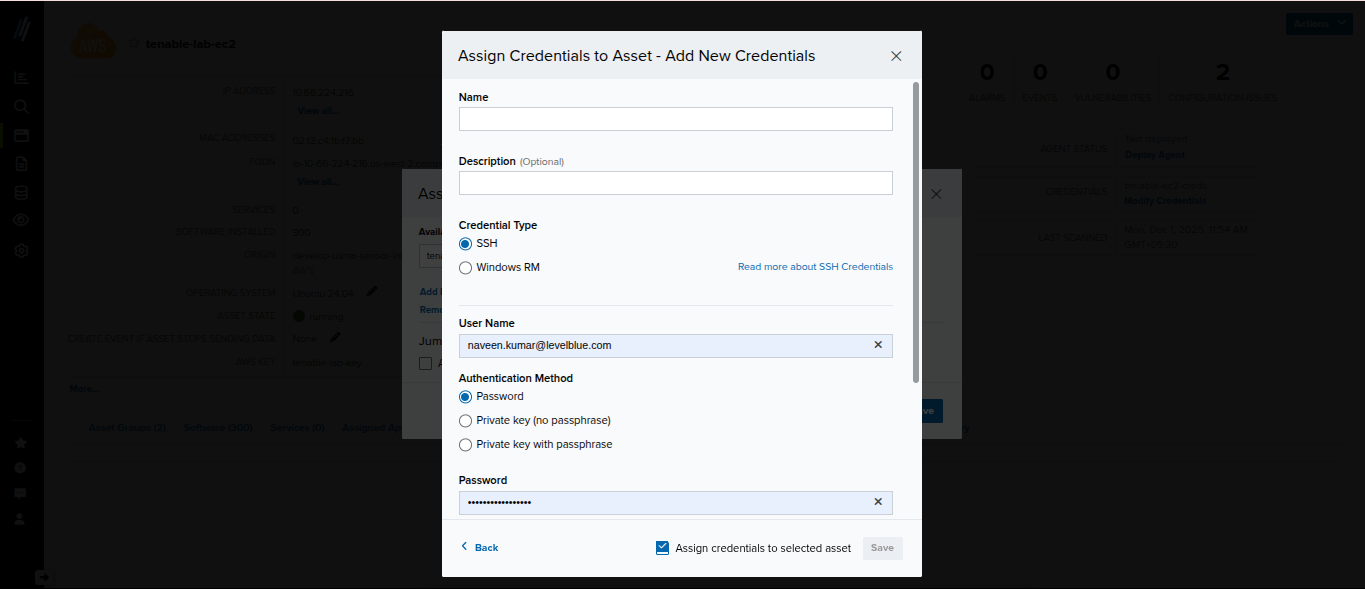
- Assign credentials to assets
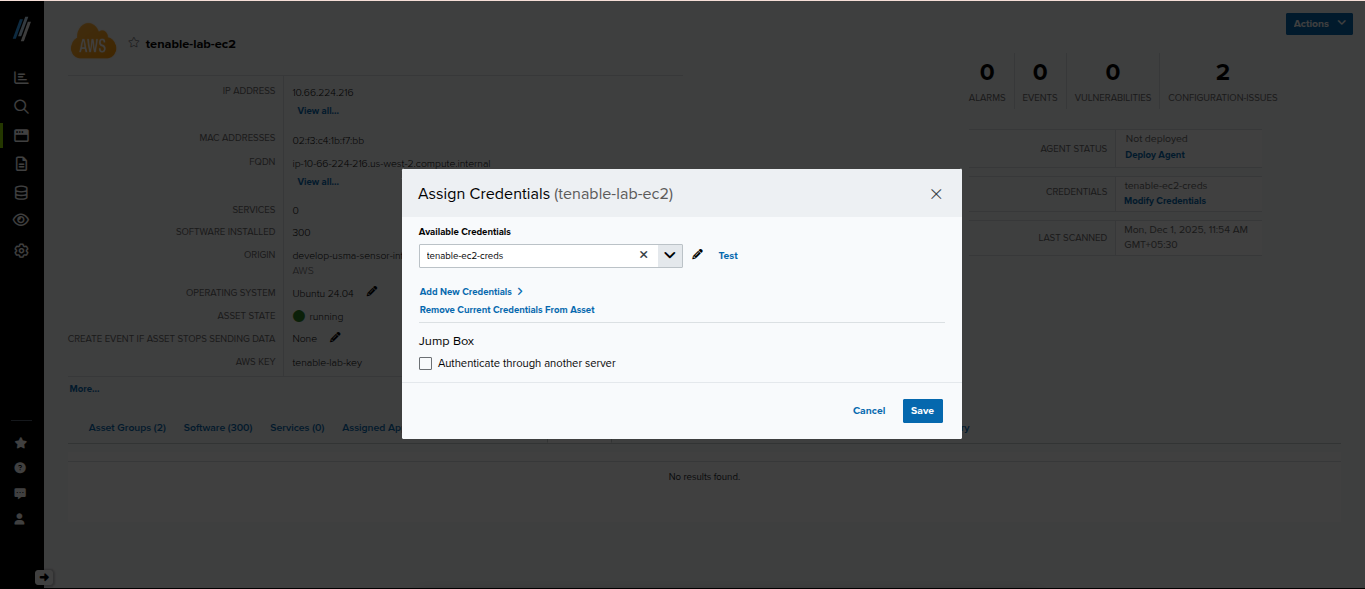
Run an Authenticated Scan
- Open the Assets page.
- Confirm that credentials have been assigned.
- Click Actions.
- Select Authenticated Scan.
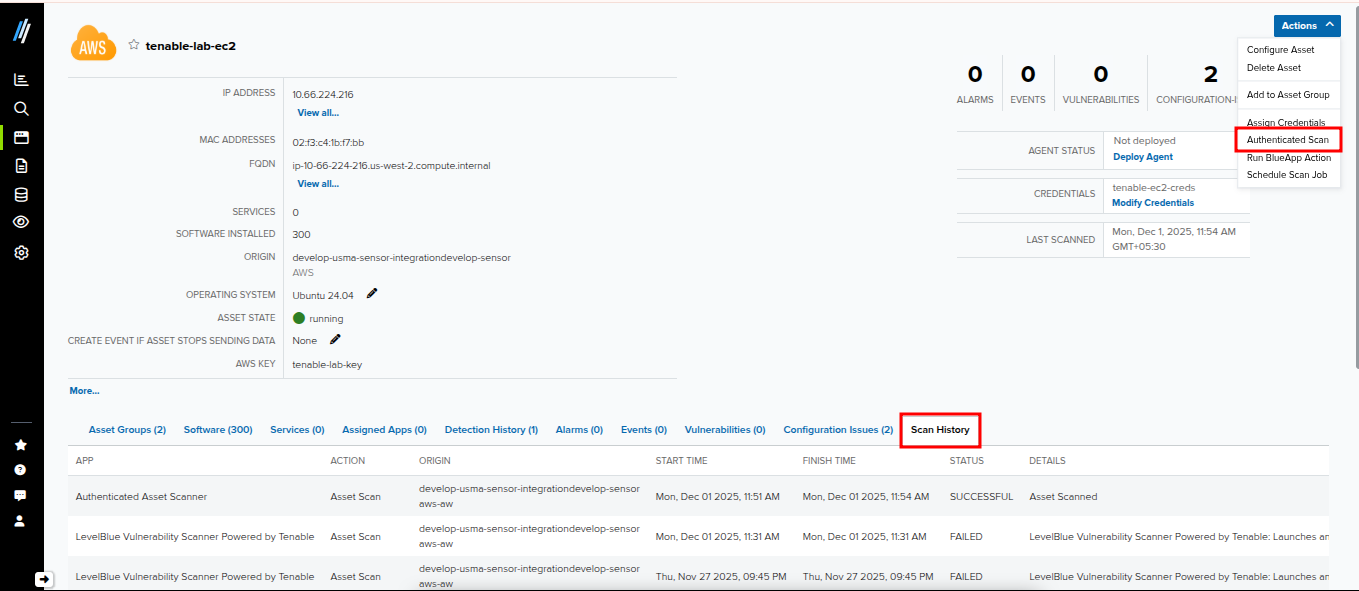
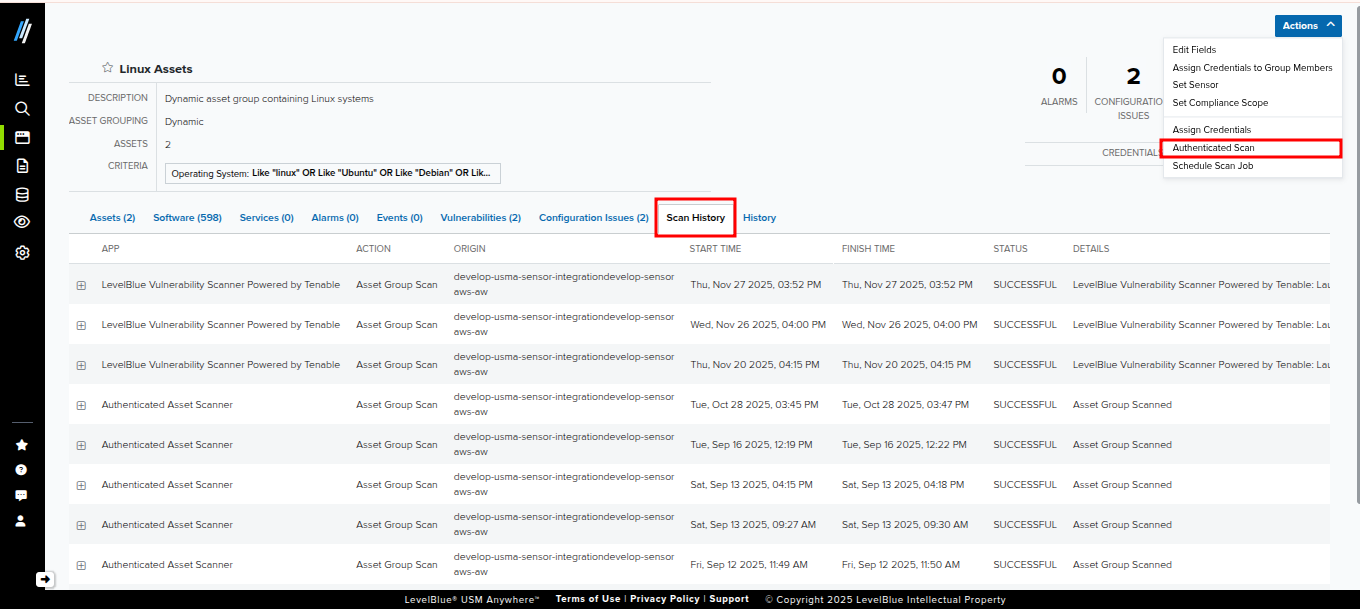
Run an Asset Group Authenticated Scan
- Open the Asset Group page.
- Confirm all assets in the group have been assigned credentials.
- Click Actions.
- Select Authenticated Scan.
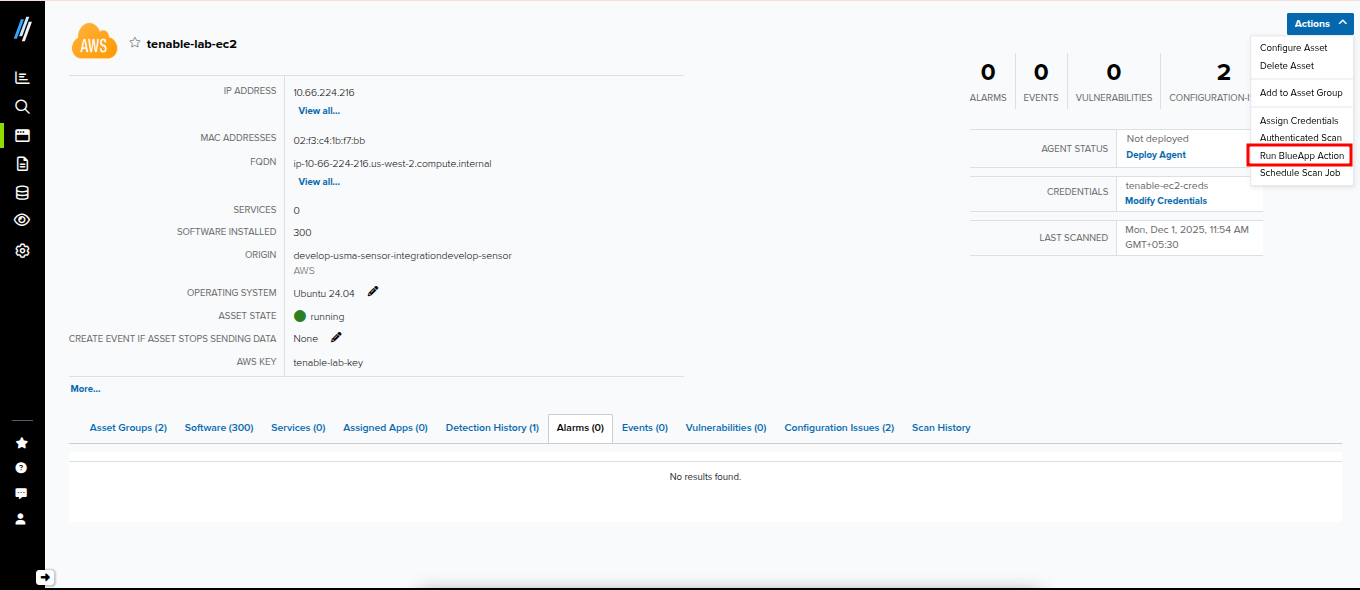
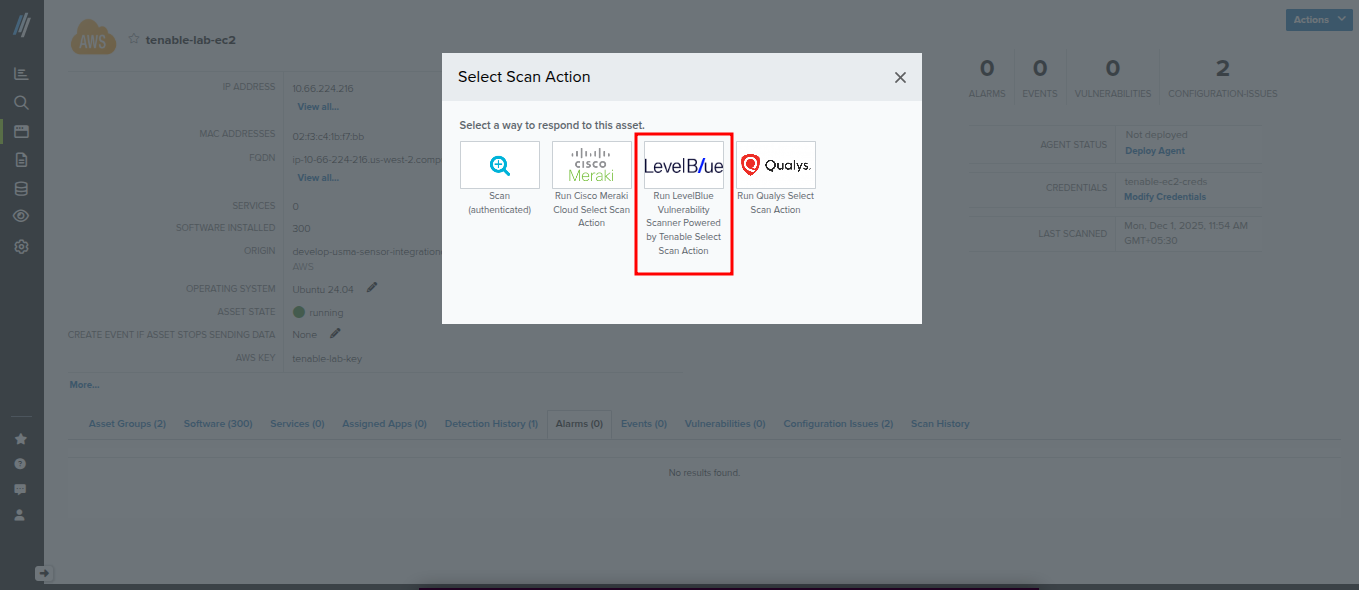
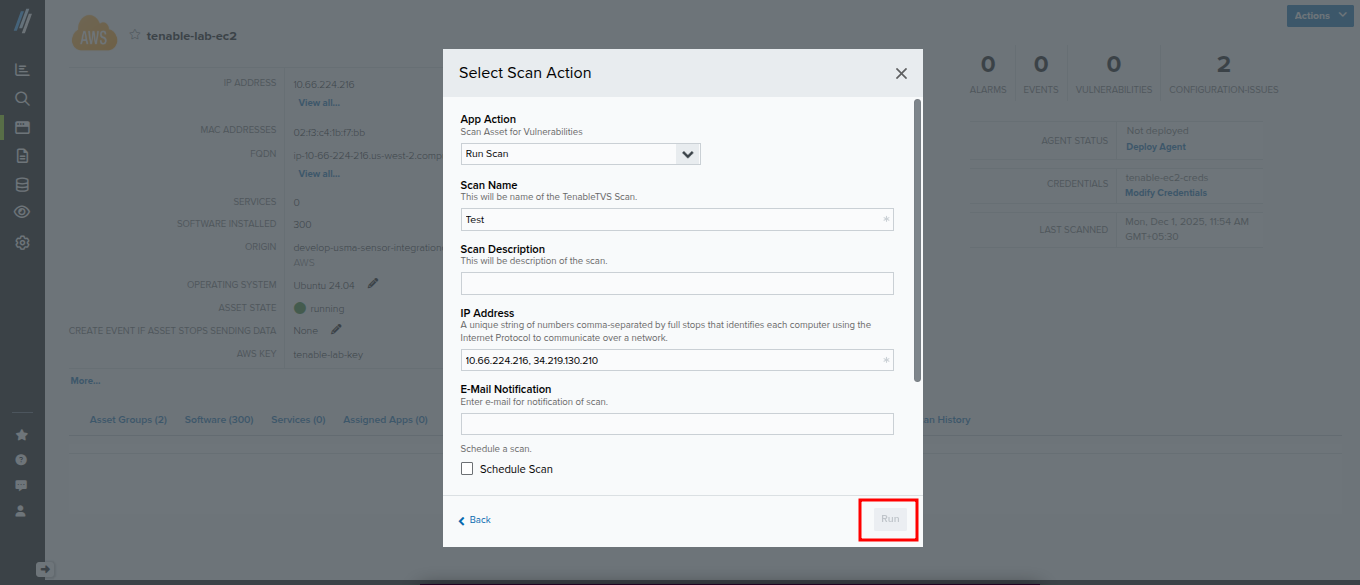
Run an Asset Scan Action
- From the Actions menu, select Run BlueApp Action.
- Select Run LevelBlue Vulnerability Scanner powered by Tenable.
- Select Run Scan.
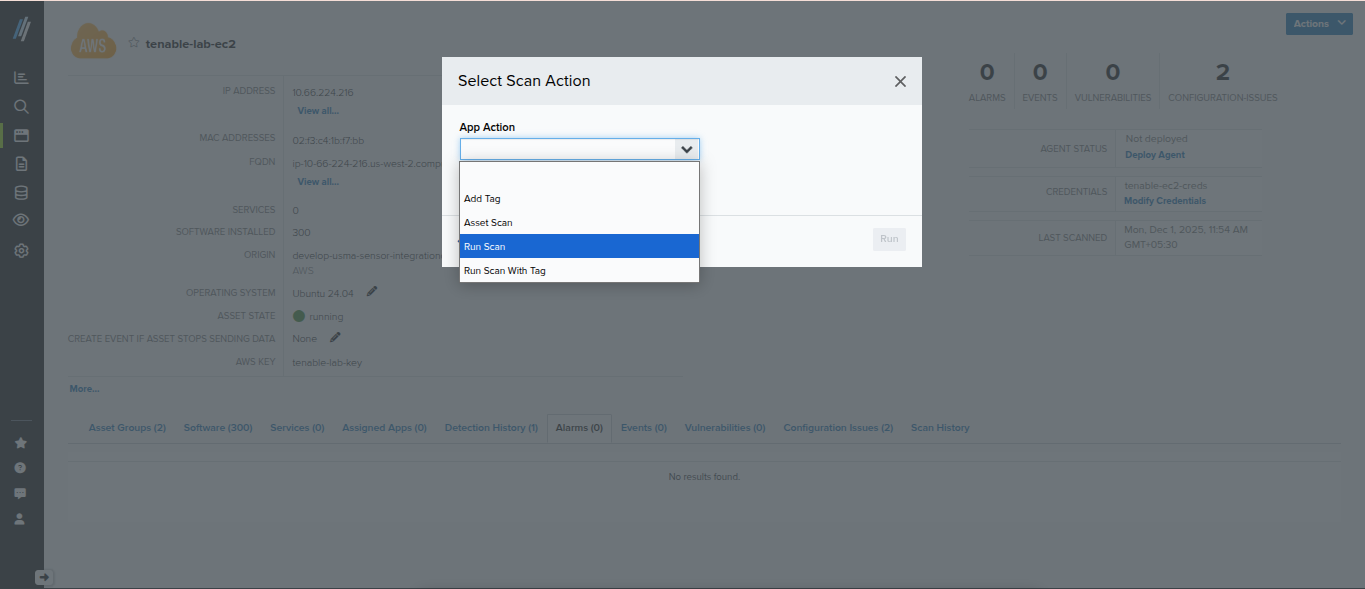
- Click Run.
Run a Scheduled Scan Periodically
The user experience does not change. Refer to Managing Credentials in USM Anywhere for more informationDownload a Scan Result File
- Open the ****Assets ****or Asset Group page.
- Go to the Scan History tab.
- Locate the Scan File column.
- Click the scan entry to download the file.
Test Credentials for an Asset
The user experience does not change. Refer to Managing Credentials in USM Anywhere for more information.Review Authenticated Scanner Status in a Sensor
- Navigate to Sensors.
- Select the sensor to review.
- Open the Authenticated Scanner tab.

Install the Nessus Scanner on Assets
- Open the Nessus download page, and then download the Nessus scanner: https://www.tenable.com/downloads/nessus.
- Follow the installation guide: https://docs.tenable.com/nessus/Content/InstallNessus.htm
- When prompted, select Link to another Tenable product.
- Link the scanner to your Tenable portal using these instructions: https://docs.tenable.com/vulnerability-management/Content/Settings/Sensors/LinkaSensor.htm.